Current guidance for logging meals, understanding your nutrient picture, using Premium features and managing your account.
Start here
How do I install Ladybug on Android?
Open the Ladybug website on your Android phone and choose the Android download.
If Android asks for permission, allow your browser to install apps from this source.
Open the downloaded APK and tap Install.
Android or your device security may warn you because Ladybug is installed directly from our website rather than from an app store. Only install the APK you downloaded from the official Ladybug website.
What happens when I first open Ladybug?
After the welcome and legal information, create a free Ladybug account or sign in. You can start logging food from My Meals, and see your daily nutrition picture on My Day.
Open ⋮ → Preferences to confirm your weight for a personalised protein goal, choose your dietary pattern, set foods to avoid in suggestions, and adjust your Ladybug day reset time.
Where is everything in the new Ladybug design?
Use the six icons at the bottom of the app, in order: My Day (daily progress), My Meals (log food), My Cookbook (saved recipes), Nutrition (nutrient education), This Week (journal) and Recipe Drop (Chef Laz’s weekly recipes).
The ⋮ menu in the top-right contains Preferences, Progress, Achievements, Saved posts, Account and Help.
What is included in Free and Premium?
Ladybug Free lets you log meals and see overall daily nutrient progress.
Premium unlocks the six detailed nutrient views, tailored food suggestions, My Cookbook and Recipe Drop features, and historical Progress insights. If you open a Premium-only feature while using Free, the app may show an upgrade prompt.
Complimentary promotional Premium access unlocks eligible Premium features without creating a paid subscription. An active paid subscription is managed separately.
Logging & My Meals
How do I log a meal?
Tap the My Meals icon in the bottom navigation.
Choose Breakfast, Lunch, Dinner, Snack or Supplements.
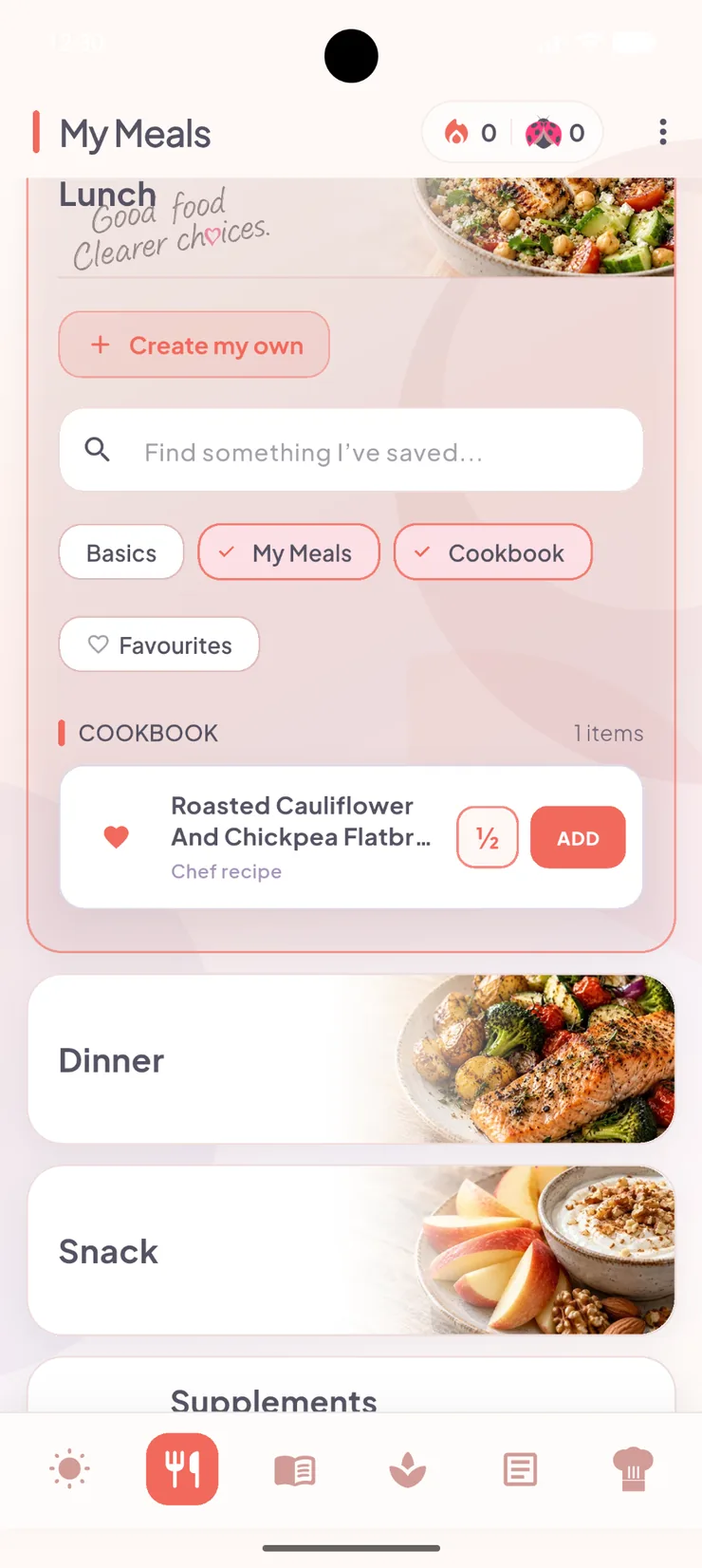
Open an eating occasion and choose Basics, My Meals or Cookbook; use the search and favourites filters if needed.
Tap ADD for one portion, or ½ for half a portion, where the buttons are shown.
Return to My Day to see the logged food and nutrient progress. After logging, Ladybug normally returns to My Day automatically.
My Meals: eating occasions, sources and the half-portion / ADD actions. Screen shown on iPhone; Android layout may vary slightly.
How do I create my own meal?
Open My Meals and choose Breakfast, Lunch, Dinner or Snack.
Tap Create my own.
Under What did you eat?, search for a meal (for example, “Greek salad”) or an individual ingredient.
If a suggested meal preset appears, choose it to add a starting combination; otherwise select ingredients individually. Review the ingredients and amounts, then tap Add to meal.
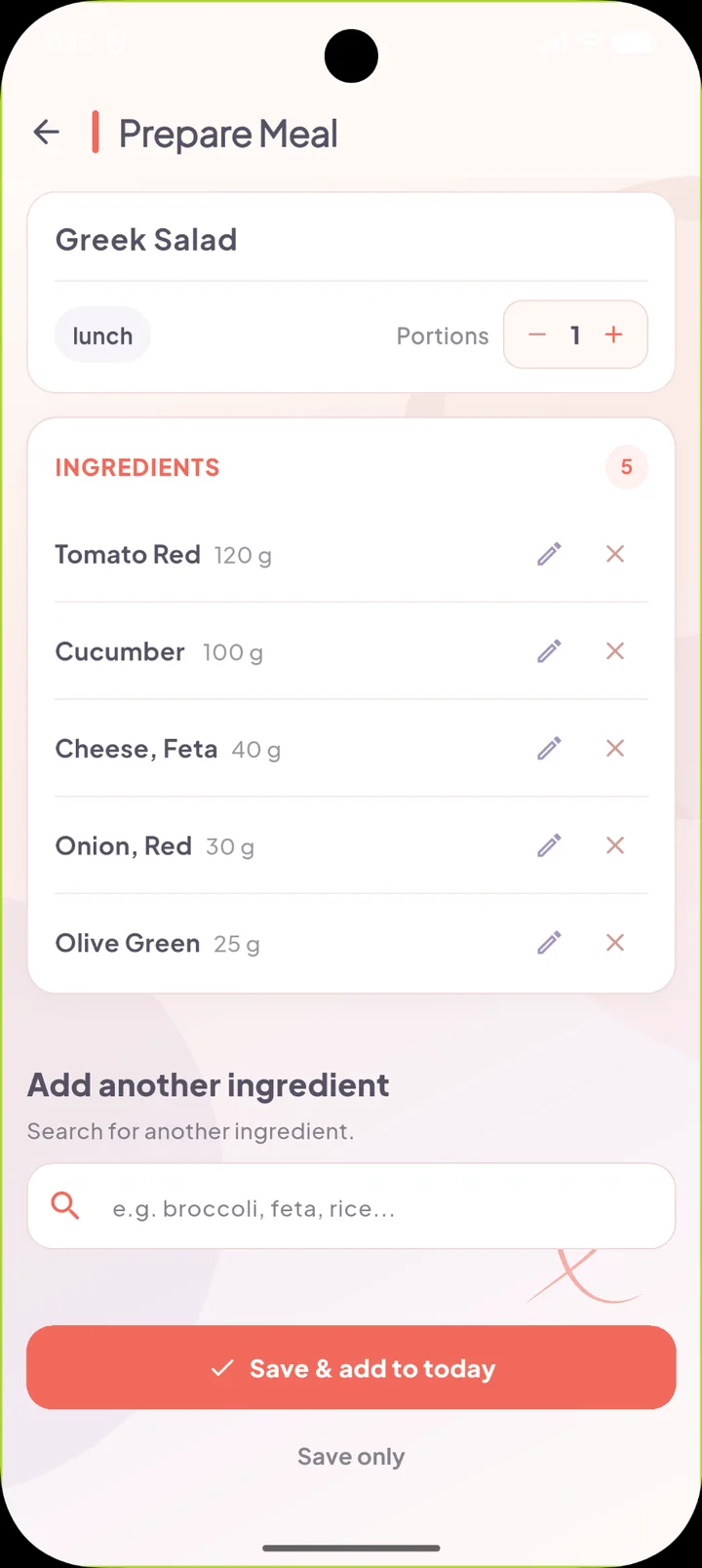
On the Prepare Meal screen, use the pencil to change ingredient quantities, the × to remove an ingredient, or the search box to add another. Adjust portions if needed. Select Save & add to today to save and log the meal, or Save only to keep it for later.
Saved meals appear under the My Meals source filter. When editing an existing meal, use Save Changes. Previously logged entries do not automatically change when the saved recipe is edited.
Prepare Meal: review and adjust each ingredient, add more food, then save and log today or save for later.
How do I add my own supplement?
Open My Meals → Supplements and tap Add a supplement. Enter the supplement information and relevant nutrient amounts, then choose Save Supplement. After saving, Ladybug may ask Add to today?; choose Add to Intake if you want to log it immediately, or use the saved supplement from My Meals later.
Always use the values on your product’s label; Ladybug does not verify supplement safety or replace professional advice.
What is the Basics Library?
Basics is Ladybug’s built-in collection of familiar everyday meals. Nutrient values are already set up, so you can log common meals without rebuilding them ingredient by ingredient.
We deliberately do not publish a fixed number here because the Basics collection can be expanded or corrected as Ladybug develops.
Can I customise a Basic meal?
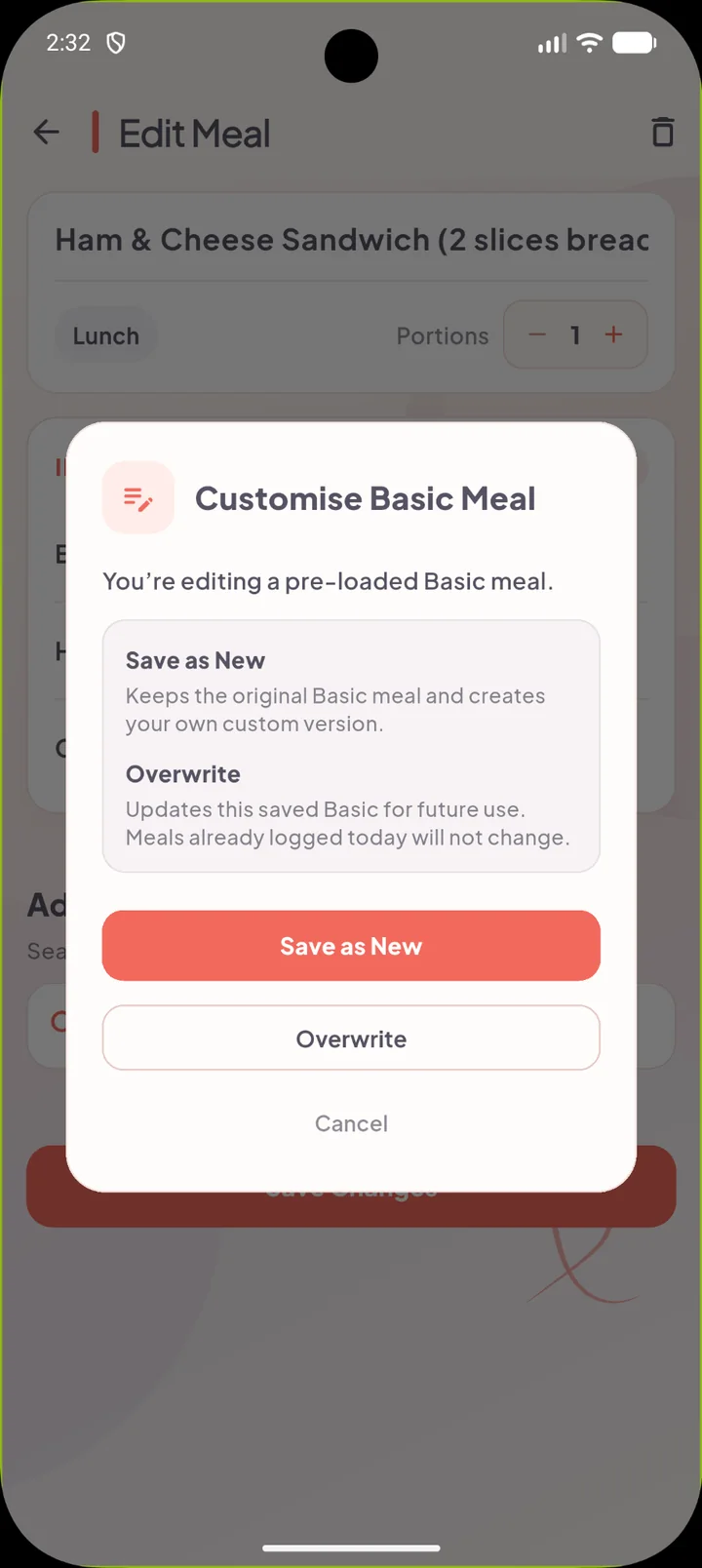
Yes. Open a Basic from My Meals → Basics and edit it. For a saved Basic, the app offers Overwrite or Save as New.
Overwrite: changes the saved Basic for future use.
Save as New: keeps the original and creates your own version.
Editing a saved meal does not retroactively update food already logged today. Remove the old daily entry and log the corrected meal again if necessary.
Customise Basic Meal: Save as New protects the original; Overwrite updates the Basic for future use.
Can I restore a Basic meal I deleted?
The current Preferences screen does not expose a public “Restore Missing Basics” control. If you have removed a Basic and need help restoring it, email ladybug@theladybugapp.com.
Do not use “reset everything” or reinstall the app just to recover one meal unless support specifically asks you to.
How do search, sorting and filters work in My Meals?
Open an eating occasion in My Meals and use the search field. The Basics, My Meals and Cookbook source chips can be selected independently; Favourites switches to favourite items.
The Sort control offers default order, alphabetical order, recently used or most used. Source-filter choices are remembered for each eating occasion.
Search and source filters within My Meals. Screen shown on iPhone; Android layout may vary slightly.
Can I log half a portion?
Yes. In My Meals, tap ½ to log a half portion, or ADD to log one full portion when these controls are shown. This applies to saved meals and Cookbook recipes.
For more than one full portion, add the meal again. When building a new meal, you can also adjust ingredient amounts and use the meal editor’s portion controls.
When does my Ladybug day reset?
Your daily reset time is configurable in ⋮ → Preferences. The default is 03:00. Anything before your chosen boundary belongs to the previous Ladybug day; anything after it belongs to the new one.
Omega-3 EPA+DHA: equivalent to 500 mg/day, assessed over a rolling seven-day window
These are Ladybug’s general nutrition targets, not an individual medical prescription.
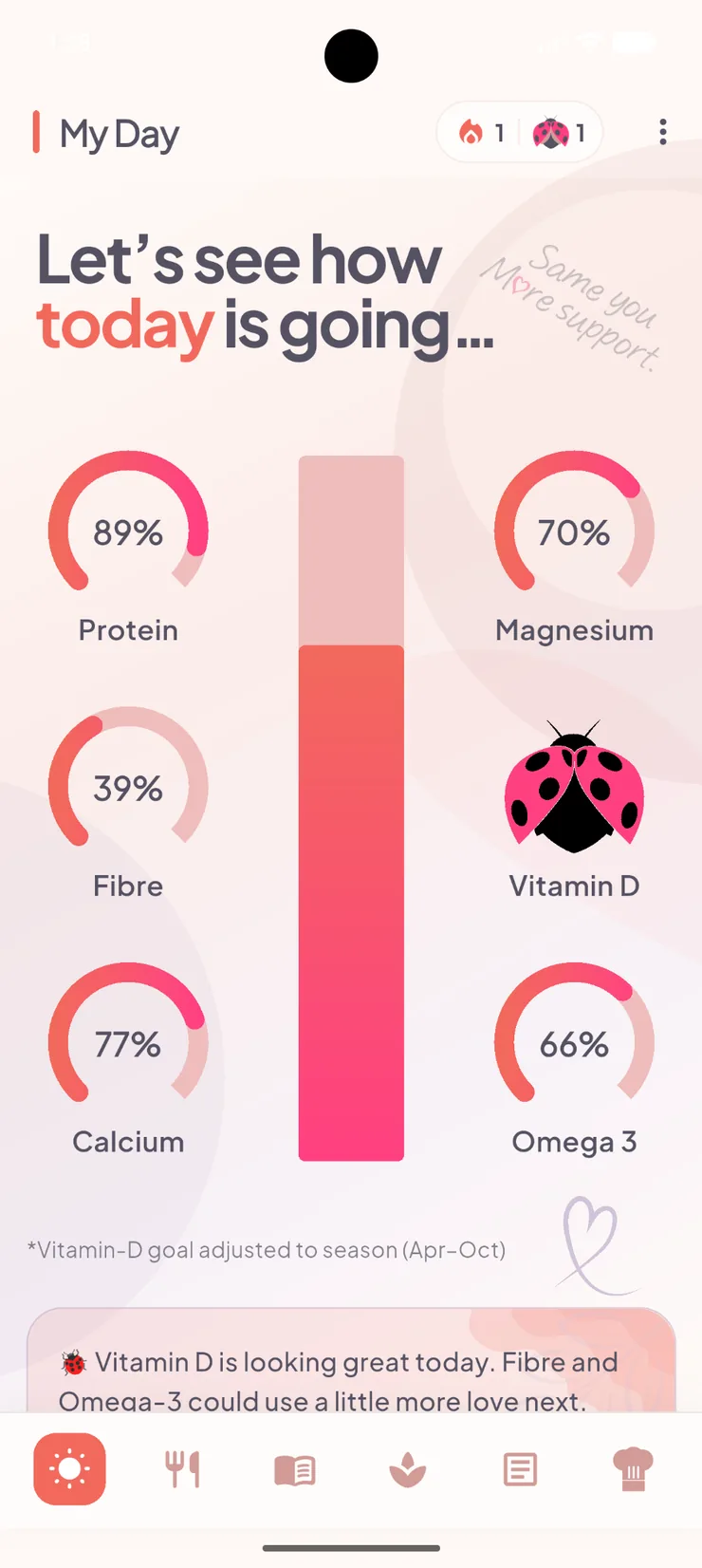
My Day: your six nutrient indicators and today’s overall picture. Screen shown on iPhone; Android layout may vary slightly.
Why does my Protein goal depend on my weight?
Ladybug calculates Protein as 1.2 × your weight in kilograms. If your weight is not confirmed, the app can still show the Protein you logged, but it cannot personalise the target reliably.
Update or confirm your weight in ⋮ → Preferences.
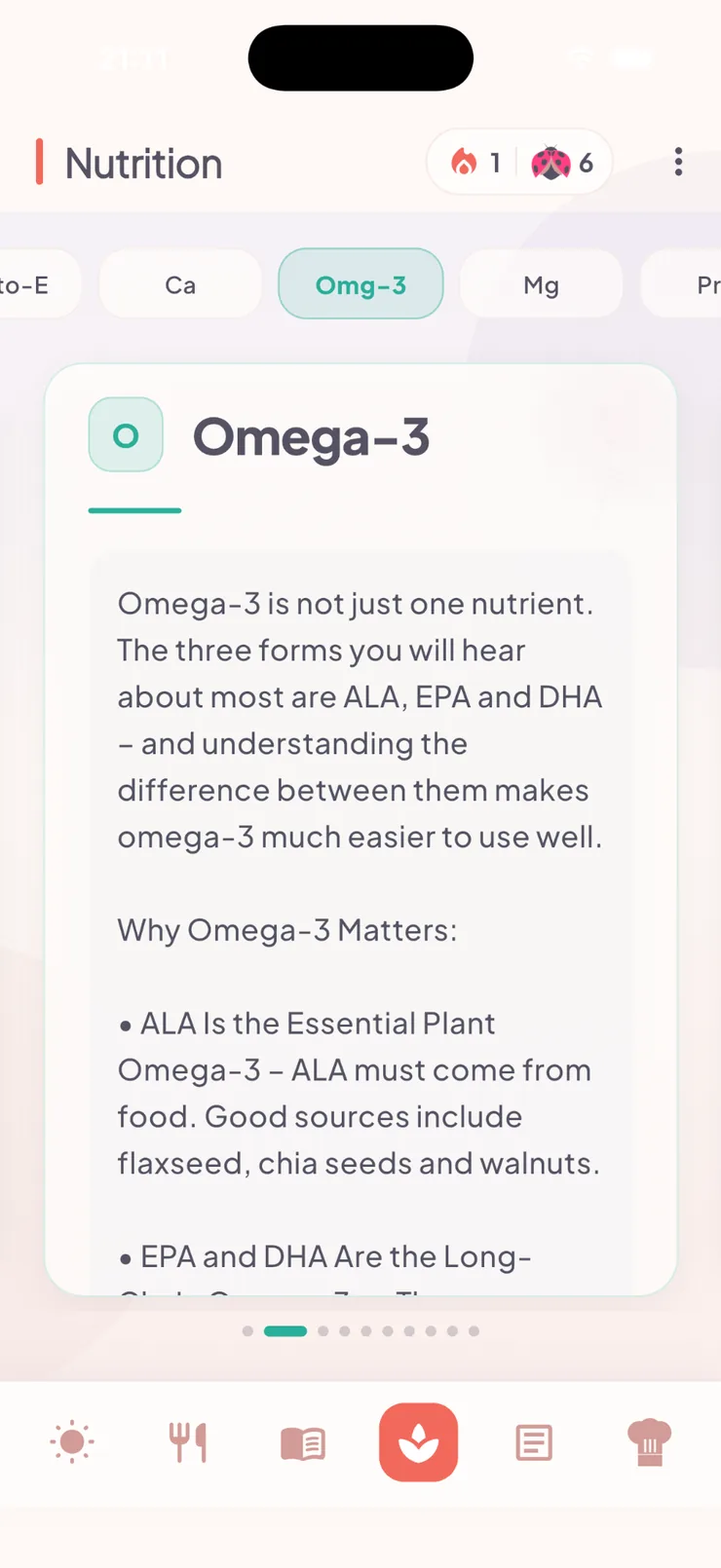
Why is Omega-3 different from the other nutrients?
Ladybug separates plant-based ALA from marine EPA + DHA. ALA has a daily target; EPA+DHA is evaluated over a rolling seven-day period because intake can vary from day to day.
Open Nutrition from the bottom navigation for information about nutrients and food sources.
The Nutrition library explains the different forms of Omega-3. Screen shown on iPhone; Android layout may vary slightly.
What happens when I tap a nutrient on My Day?
My Day shows how today’s meals contribute to the six tracked nutrients. Tapping a nutrient can open more detail and food-source information, subject to your Premium access.
If you use the standard Free version, detailed nutrient views may show a Premium upgrade prompt.
What is the Nutrition section?
Tap Nutrition in the bottom navigation to learn about the nutrients Ladybug tracks, why they matter and where to find them in food. This educational library is separate from today’s progress on My Day.
Nutrition: educational information about Omega-3 and other nutrients. Screen shown on iPhone; Android layout may vary slightly.
Food guidance & Preferences
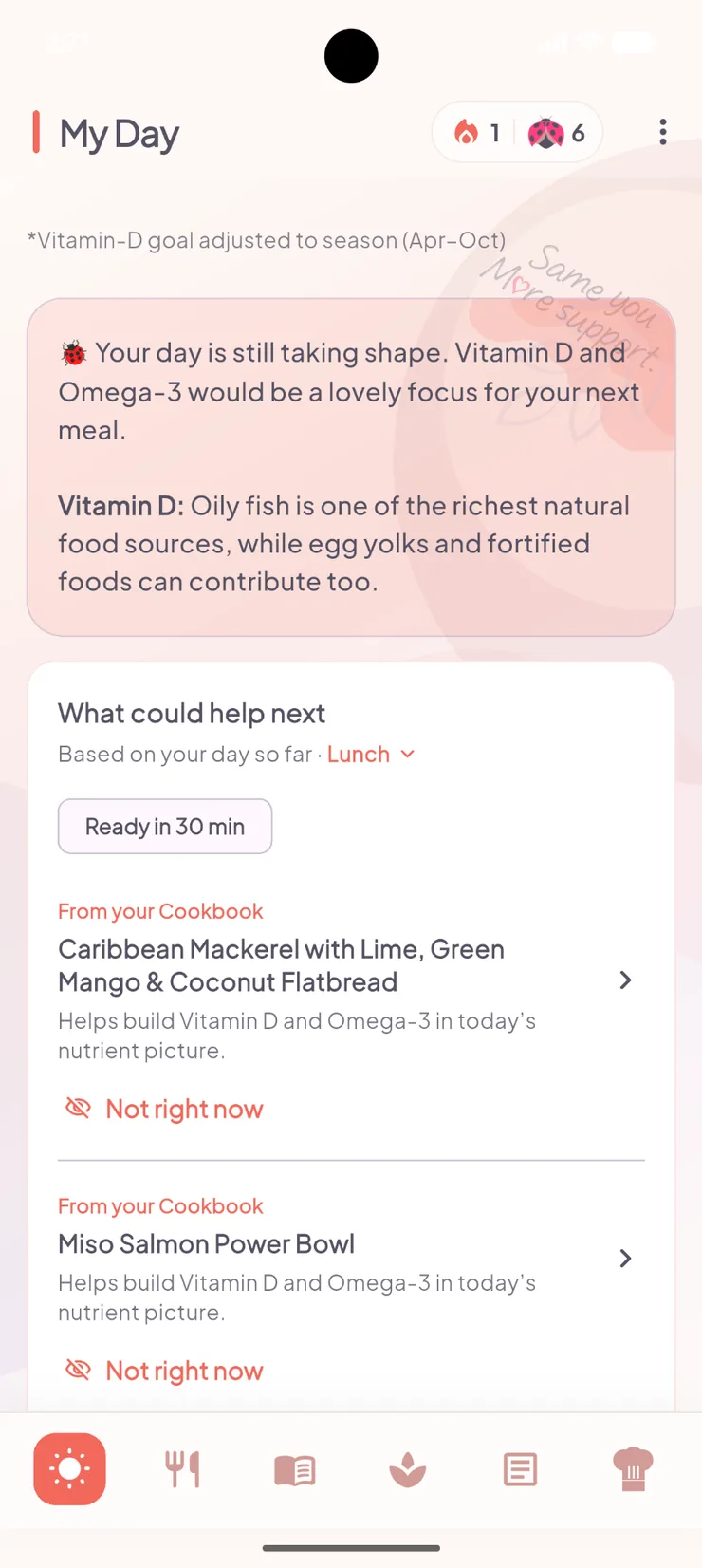
What does “What could help next” mean?
When there is a useful next eating occasion, Ladybug can suggest food or Cookbook recipes that may help strengthen nutrients currently low in your day.
Suggestions take account of logged meals and food preferences. They may not appear after Dinner or when the day is already looking strong. The suggestions are general food guidance—not prescriptions or a diet plan.
My Day: suggested next meals and an option to defer them. Screen shown on iPhone; Android layout may vary slightly.
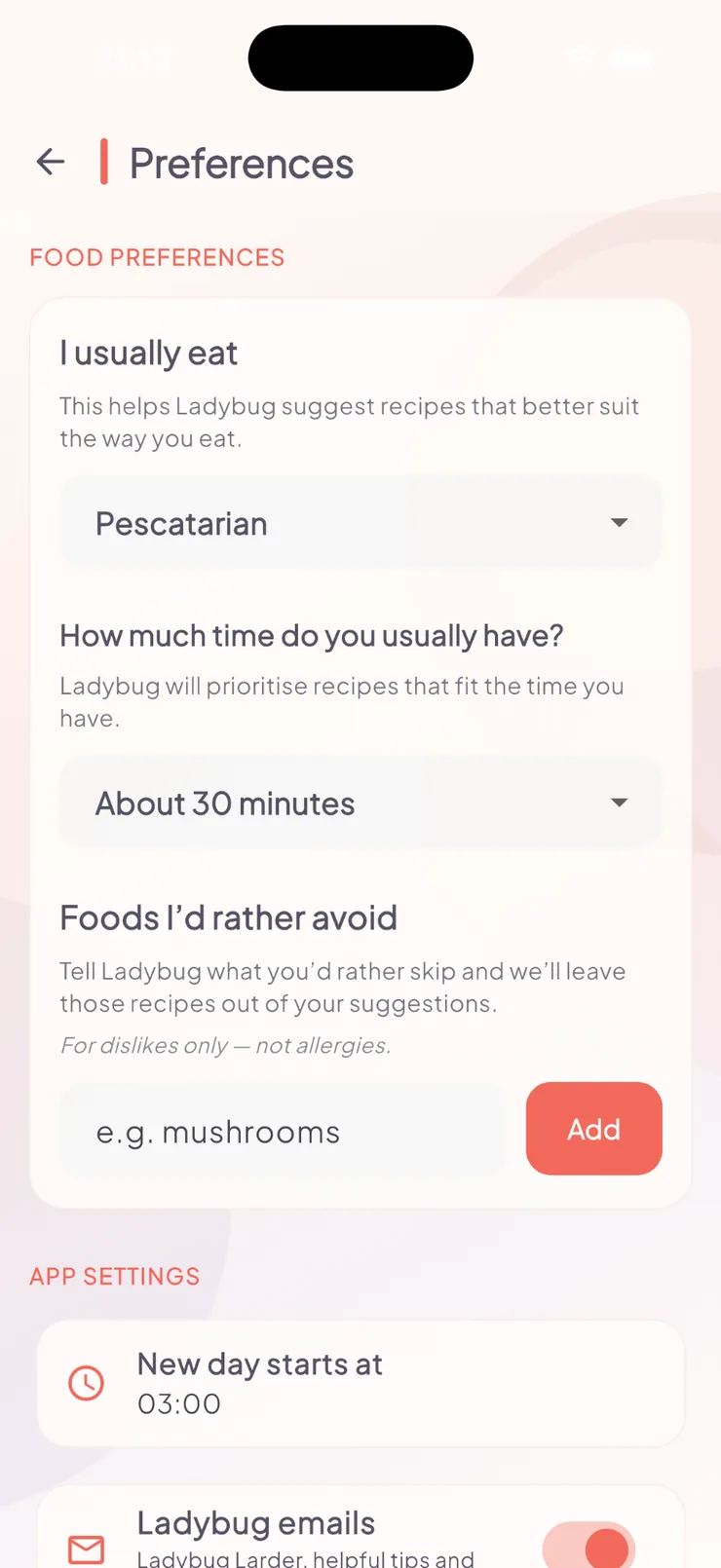
Which Preferences affect food suggestions?
Under ⋮ → Preferences, you can choose a dietary pattern (Everything, Pescatarian or Vegetarian), preferred cooking time and foods you would rather avoid seeing in recommendations. You can also set your weight and daily reset time.
The food-preference settings are not an allergy-safety system. Always check ingredients yourself if you have an allergy or other medical dietary restriction.
Preferences: dietary pattern, cooking time, foods to avoid and day reset. Screen shown on iPhone; Android layout may vary slightly.
Can I hide a recommendation I do not want?
Yes. Recommendations can be hidden so Ladybug can avoid repeatedly showing the same suggestion in that context. Your normal saved recipes and Cookbook are not deleted when you hide a recommendation.
Recipe Drop, Cookbook & This Week
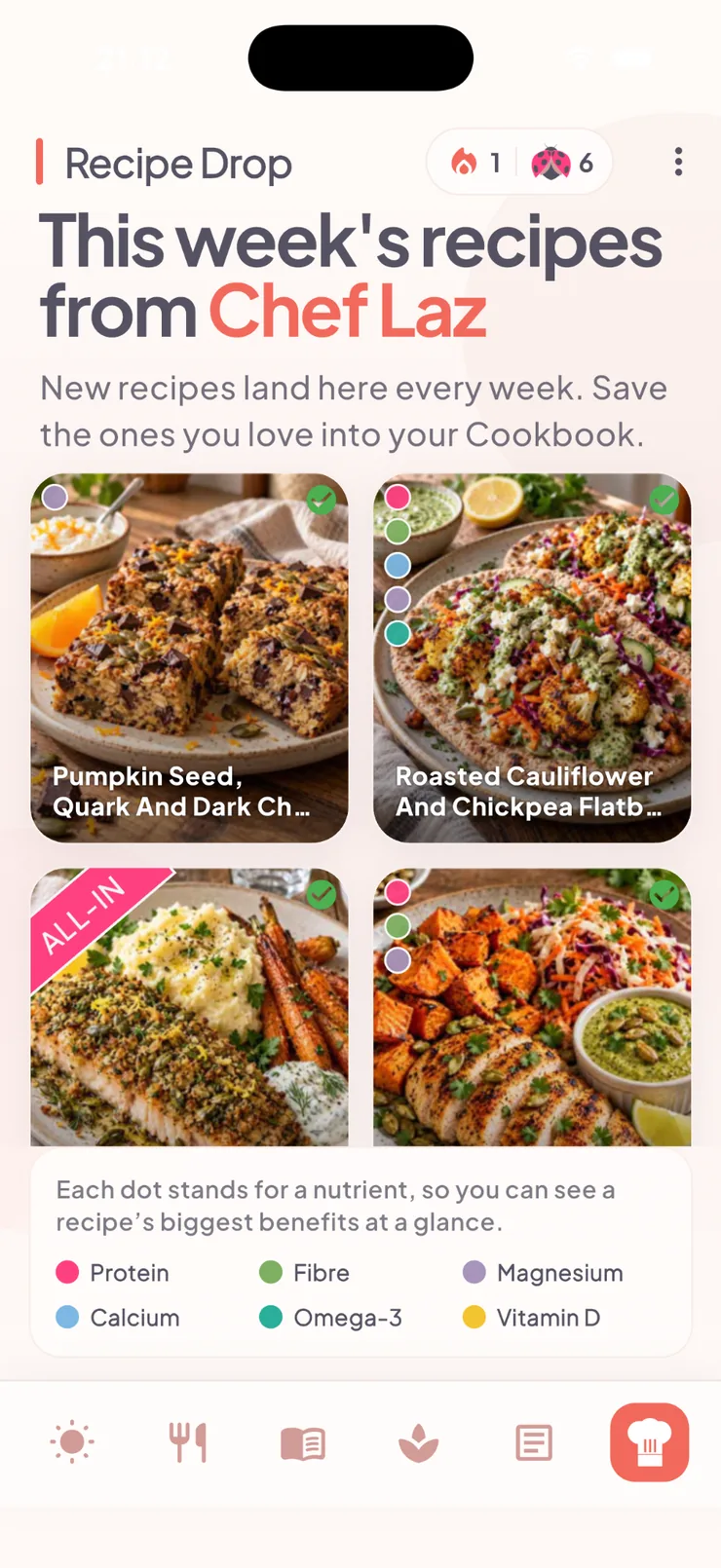
What is Recipe Drop?
Recipe Drop is Ladybug’s weekly collection of Chef Laz recipes and practical food ideas. Find it using the chef-hat icon in the bottom navigation.
Open a recipe for its details, then tap Save to My Cookbook to keep it. Find saved recipes in My Cookbook, where you can search, filter and choose recipes to log from My Meals → Cookbook.
Recipe Drop: the current weekly selection from Chef Laz. Screen shown on iPhone; Android layout may vary slightly.
How do saved Cookbook recipes affect my daily intake?
Saving a recipe to My Cookbook does not log food. To add it to today, open My Meals, select the correct eating occasion and choose the Cookbook source. Tap ADD to log one portion, or ½ for half a portion.
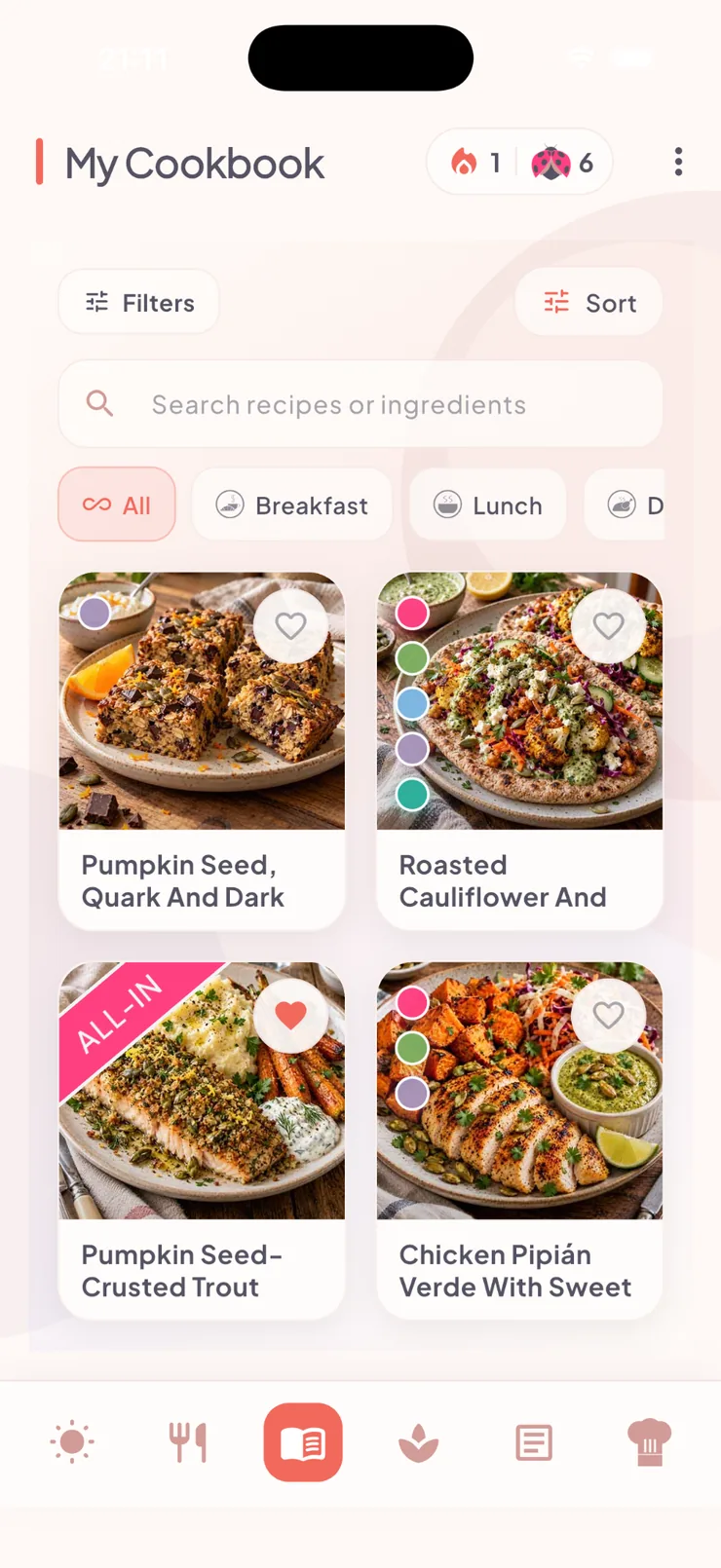
My Cookbook: saved recipes with filters and sorting. Screen shown on iPhone; Android layout may vary slightly.
How do I find a recipe in My Cookbook?
Open My Cookbook using the book icon in the bottom navigation. Search by name or ingredient, use meal-category chips, or tap Filters for dietary pattern, cooking-time preferences and favourites. Sort offers default, most recent and alphabetical order.
Tap a recipe to inspect it. To add it to the daily log, go to My Meals, select an eating occasion and switch to the Cookbook source.
My Cookbook: recipes and filtering controls. Screen shown on iPhone; Android layout may vary slightly.
Where do I find This Week posts and my saved posts?
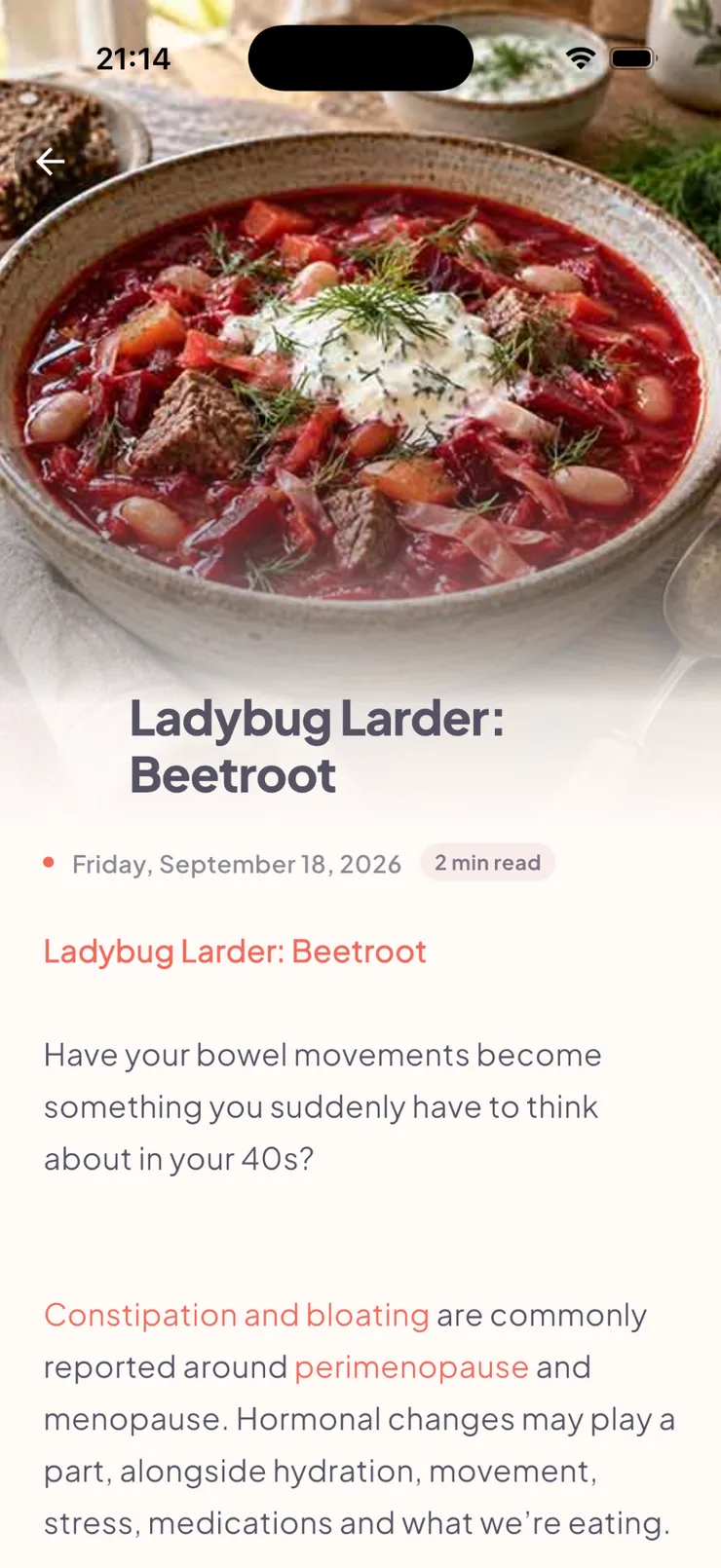
Open This Week from the bottom navigation to read the Ladybug journal. You can save articles for later and, where available, like them.
Open ⋮ → Saved posts to find your saved articles.
This Week: a recent Ladybug journal article. Screen shown on iPhone; Android layout may vary slightly.
Why do I see recipe or Journal notification dots?
Ladybug can use optional push notifications and unread indicators to let you know about new recipes, Journal posts or important updates. You can disable push notifications in your device settings.
Progress, streaks & Ladybug Points
Why does Progress not show this week or this month?
Open ⋮ → Progress for your historical nutrient picture. Unlike My Day, Progress focuses on completed periods.
Weekly history uses finished Monday–Sunday weeks; monthly history uses completed calendar months. An unfinished week or month is intentionally excluded. The screen also indicates how many days were active in the selected period.
How does my streak work?
Your streak counts consecutive Ladybug days with qualifying activity. It follows your configured day boundary in Preferences.
If you miss exactly one day and have enough Ladybug Points, a six-point streak recovery may be offered. More than one missed day cannot be recovered through that one-day option.
How do Ladybug Points work?
You can earn one point the first time you reach each of Ladybug’s six nutrient goals during a Ladybug day: Protein, Fibre, Calcium, Magnesium, Vitamin D and Omega-3. That means up to 6 points in one day.
For Omega-3, the point is awarded when both the ALA and EPA+DHA parts of the current Omega-3 goal are satisfied.
Points can be spent on the eligible one-day streak recovery described above.
Account, billing & deletion
Where do I find Preferences, Progress and Account?
Tap the ⋮ menu near the top-right of the app. Choose Preferences for app settings, Progress for completed-period history, or Account for subscription and account management.
How do I manage a direct / Stripe subscription?
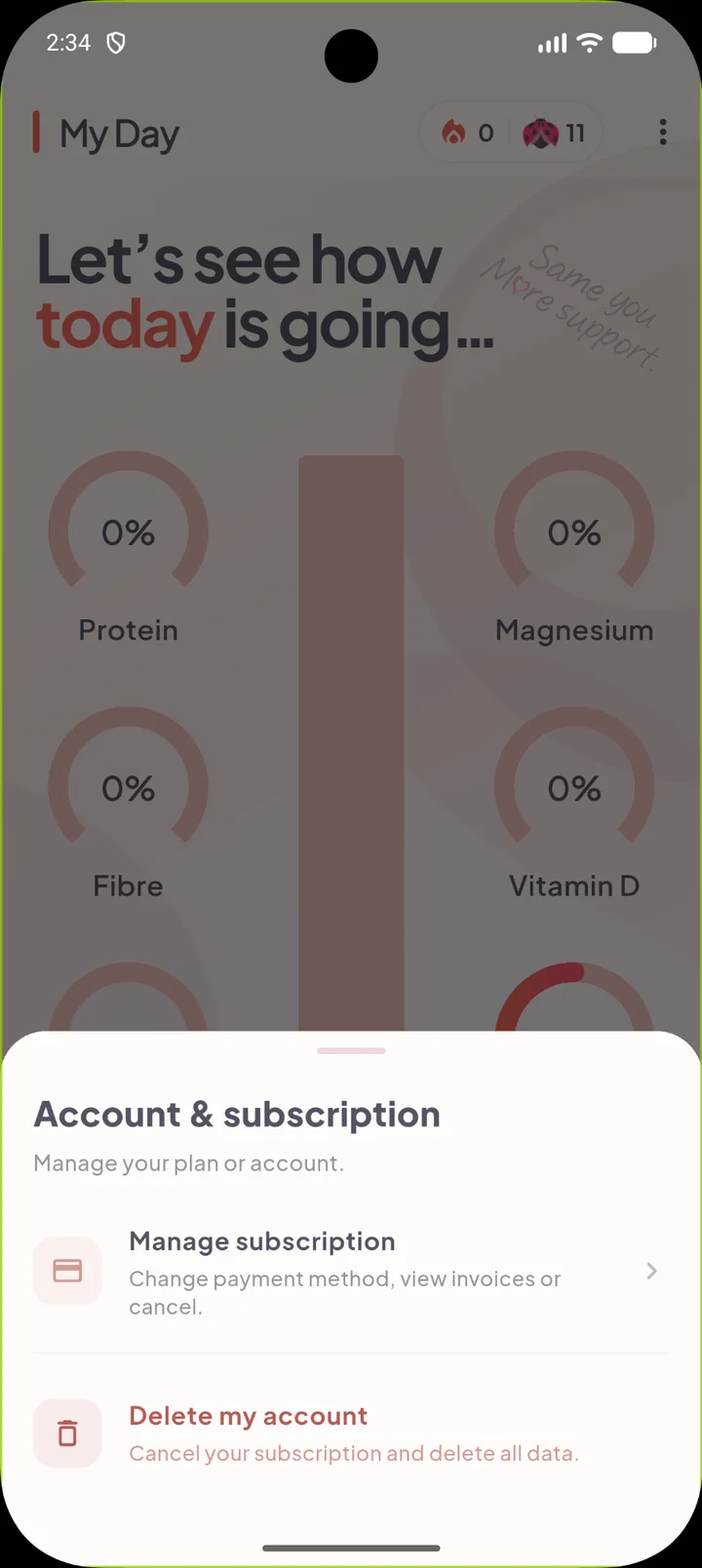
Open ⋮ → Account. If you subscribed directly through Ladybug on Android, you can open the secure subscription-management link for your billing details and plan.
If a promotion or trial applies to your subscription, refer to the terms shown when you subscribed; promotional Premium access does not itself create a paid subscription.
Android account management: manage a direct subscription or request account deletion.
What if I bought Premium through Apple?
Apple subscriptions are managed through Apple. On your iPhone, go to Settings → [your name] → Subscriptions → Ladybug App. For refund requests, visit Apple’s refund service.
How do I delete my account?
Open ⋮ → Account → Delete my account and follow both confirmation steps.
If your subscription was purchased through Apple, deleting the Ladybug account does not cancel Apple billing. Cancel the Apple subscription separately if you do not want it to renew. For a linked direct subscription, the in-app deletion flow requests cancellation as part of deletion.
Tap ⋮ ⋮ → Log out. Your Ladybug account is not deleted; you can sign in again later.
Troubleshooting
How do I check for an Android update?
On Android, open ⋮ ⋮ → Check for Updates. Ladybug will check whether a newer direct-download build is available.
My Day did not update after I logged something
Check that your food appears in the What you’ve logged today list on My Day.
If you edited a saved meal after logging it, the older daily entry does not change automatically: remove that entry and add the updated meal again. If the screen looks stale, return to My Day or restart the app. If cloud content is missing, check your connection.
I cannot sign in
Check that you are using the same email address you originally registered with. If your password is not accepted, use the password-reset option on the login screen.
Email ladybug@theladybugapp.com. Please include what you were trying to do, what happened instead, your phone model if relevant, and a screenshot if it helps.
No help article matched that search. Try a shorter phrase, or contact us below.
Last updated: 15 October 2026
Still stuck?
Tell us what you were trying to do and what happened. Screenshots are useful when something looks wrong.